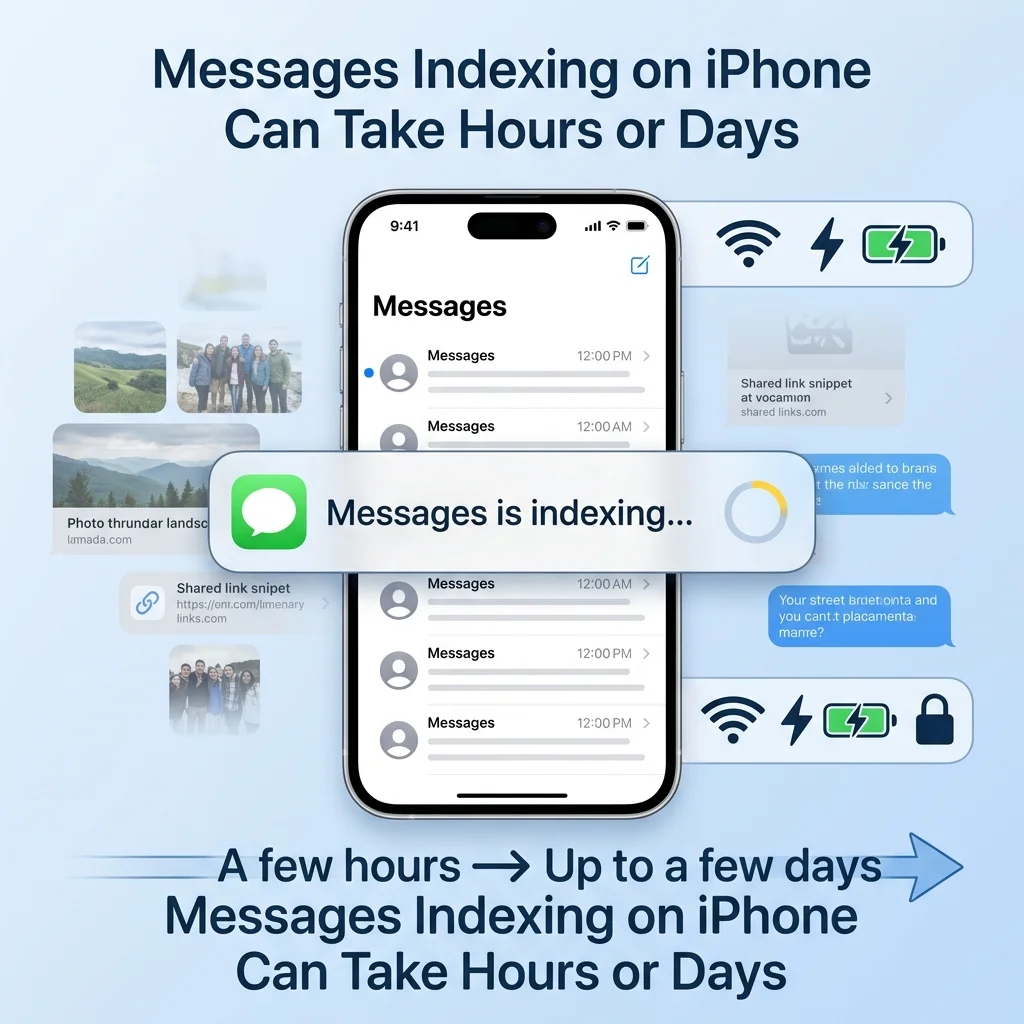
You open a chat, tap the contact name, and see a note saying shared links, photos, and more will appear once Messages finishes indexing. It feels like your files vanished. In most cases, messages indexing iPhone is normal and temporary.
This guide explains what the alert means and how long it takes. It also gives 8 quick fixes to finish messages indexing iPhone and bring back missing photos, links, and old texts.
What Does Messages Indexing iPhone Mean and How Long Does It Take?
Messages indexing iPhone is how your iPhone sorts and catalogs your message history. Apple says the wait can be quick or take up to a few days, depending on your saved Messages data and background tasks.
Think of it as a librarian shelving thousands of books. Until the work is done, you can’t find certain items. Your messages are safe, but the Info tab, search results, and shared media may look empty.
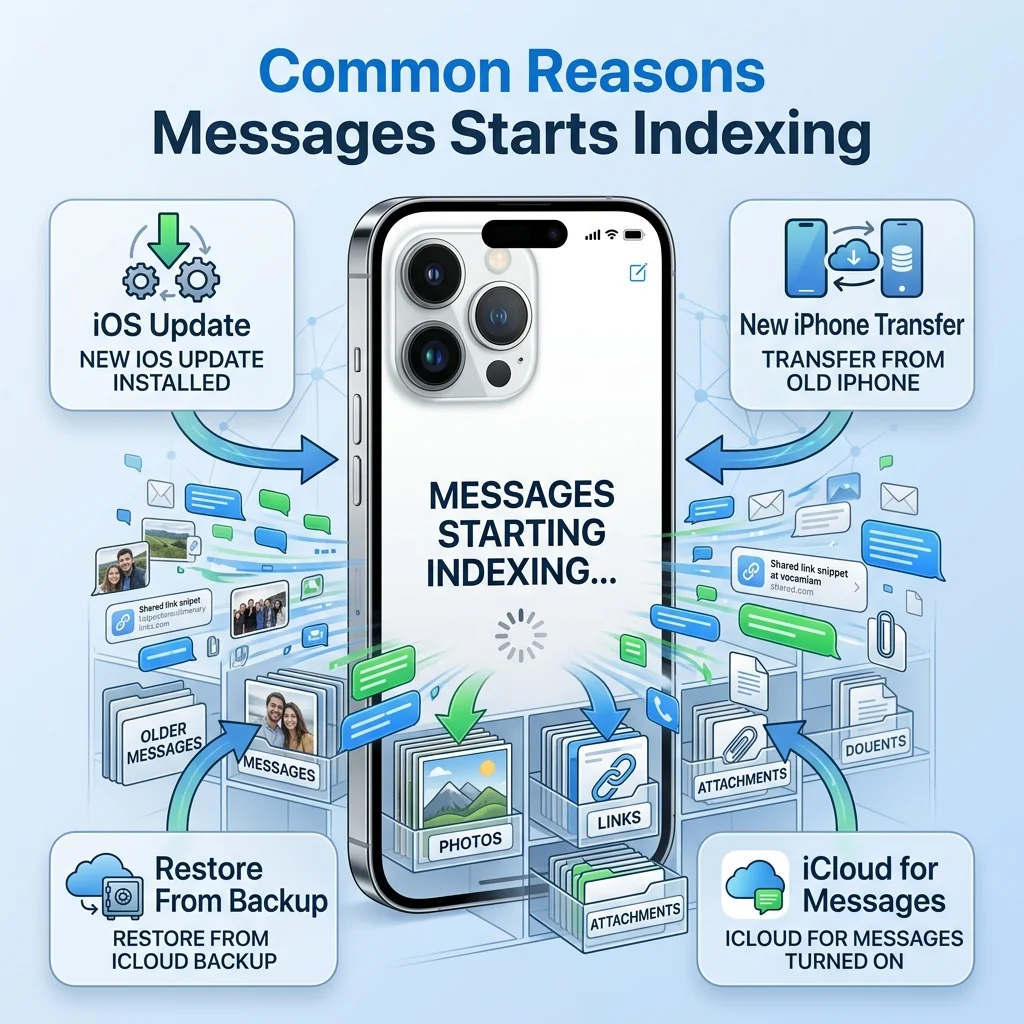
Indexing usually starts after one of these events:
- An iOS update
- A transfer to a new iPhone
- A restore from backup
- Turning on iCloud for Messages
Newer chats often load first. Older photos, links, and attachments follow later. A big message archive with years of pictures takes longer than a small one.
Apple also notes that indexing finishes faster when your iPhone is locked and connected to Wi-Fi. A weak network, low storage, or heavy background activity slows it down. If nothing changes after two or three days, try the fixes below.
If you’re searching through your iPhone messages for birthday conversations or trying to recover memorable wishes, having the right words can make those moments even more special. For some fresh inspiration, explore these funny birthday messages that are perfect for adding humor to your next birthday wish.
8 Quick Fixes for iPhone Messages Indexing
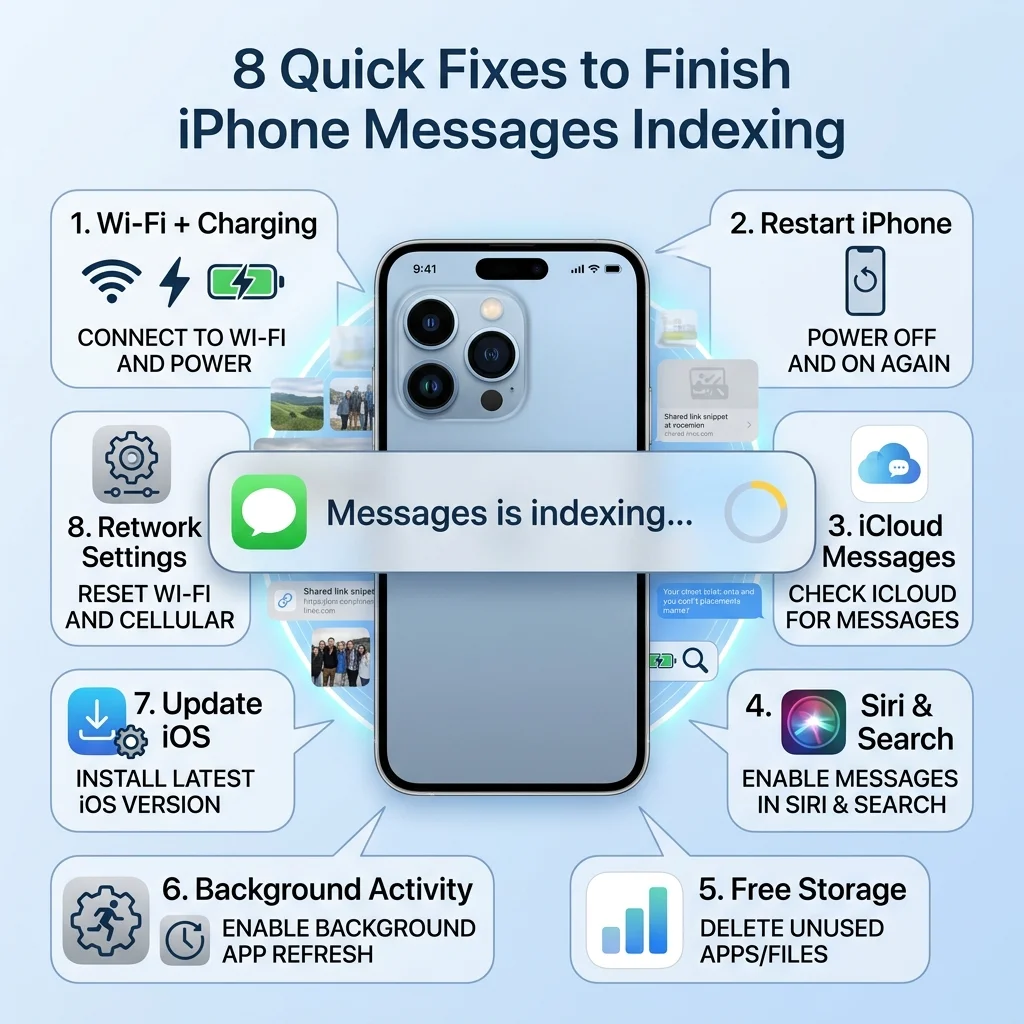
Start with the easiest fixes and work down the list. Each one targets a common reason iPhone messages are not indexing.
- Keep your iPhone locked, plugged in, and on Wi-Fi. This gives iOS the best conditions to work. Skip cellular data, and turn off Low Data Mode for your Wi-Fi network if it’s on.
- Restart the Messages app and your iPhone. Swipe up from the bottom, flick the Messages app away, then restart the phone. A fresh start can clear a small glitch.
- Turn iCloud for Messages off and on. Go to Settings, tap your name, then tap iCloud and Messages. Switch Use on this iPhone off, wait a moment, then switch it on. Older iOS versions call it Sync this iPhone. Do this once and be patient. Repeated toggling can restart the process.
- Reset the Siri & Search settings for Messages. Open Settings > Siri & Search > Messages. Turn off every toggle, restart your iPhone, then turn them back on. Give it up to 24 hours.
- Free up iPhone and iCloud storage. Check Settings > General > iPhone Storage, then check your iCloud storage under your name. A full device or full iCloud plan can stall syncing. If you use Optimize iPhone Storage for photos, switch to Download and Keep Originals in Settings > Photos, but only if you have the space.
- Pause iCloud Backup and Background App Refresh for now. Turn off Back Up This iPhone under iCloud Backup. Then turn off Background App Refresh in Settings > General. This frees power for indexing. Turn both back on afterward.
- Update iOS and turn off Low Power Mode. Go to Settings > General > Software Update to install the latest version. Then turn off Low Power Mode under Battery, because it reduces background activity.
- Reset Network Settings. If Wi-Fi keeps dropping, go to Settings > General > Transfer or Reset iPhone > Reset > Reset Network Settings. This clears saved Wi-Fi passwords, so keep them handy.
Still stuck after all eight? Contact Apple Support. A rare hardware issue could be the cause. Avoid downgrading iOS, since a mistake can cause serious damage.
Moving to a new iPhone? Turn on iCloud for Messages right after setup. Don’t skip the iCloud prompts. Users often report that messages return faster this way.
Need a photo right now? Ask the sender to share it again with this quick text.
Hey, my iPhone is still indexing Messages and I can’t see our old photos. Could you send that picture again when you get a chance?
FAQs
What does it mean when iPhone messages are indexing?
It means your iPhone is organizing your message history. Until it finishes, shared links, photos, and search results may not show in conversations. It often happens after an iOS update, a data transfer, or a restore. Your messages are not deleted.
How long does it take for my iPhone to finish indexing?
It can take a few hours or up to a few days, according to Apple. The time depends on your message archive size, background tasks, and network. A locked, charging iPhone on Wi-Fi finishes faster.
Why is my messages app stuck on indexing on my iPhone?
Common causes include low iPhone storage, full iCloud storage, a weak Wi-Fi connection, Low Power Mode, or an outdated iOS version. A sync glitch with iCloud for Messages can also freeze progress.
How to complete message indexing on iPhone?
Keep your iPhone plugged in, locked, and on Wi-Fi. Then turn iCloud for Messages off and on, free up storage, and restart the phone. If it still won’t finish, update iOS or contact Apple Support.
Conclusion
Messages indexing on iPhone is a normal background task, and it usually clears on its own. Start with Wi-Fi, charging, and the iCloud toggle.
If nothing works after a few days, reach out to Apple Support. Your messages are almost always safe.

Timmy Abu Zar is the writer and voice behind CondolenceMessages.com, dedicated to helping people find comforting words during life’s most difficult moments. With a deep respect for the many ways people grieve and remember, Timmy writes thoughtful, sincere messages and guides to support readers through loss, no matter their background or beliefs.