The Samsung Messages app is Samsung’s built-in text message app for Galaxy phones and tablets. It sends SMS, MMS, and, on some carriers, RCS chats.
Samsung is now retiring it in the US. This guide covers its features, settings, fixes, and your next steps.
Samsung Message App Features You Should Know
The Samsung messaging app is the default SMS app on many Galaxy devices. You can text anyone with a phone number, with no extra sign-up.
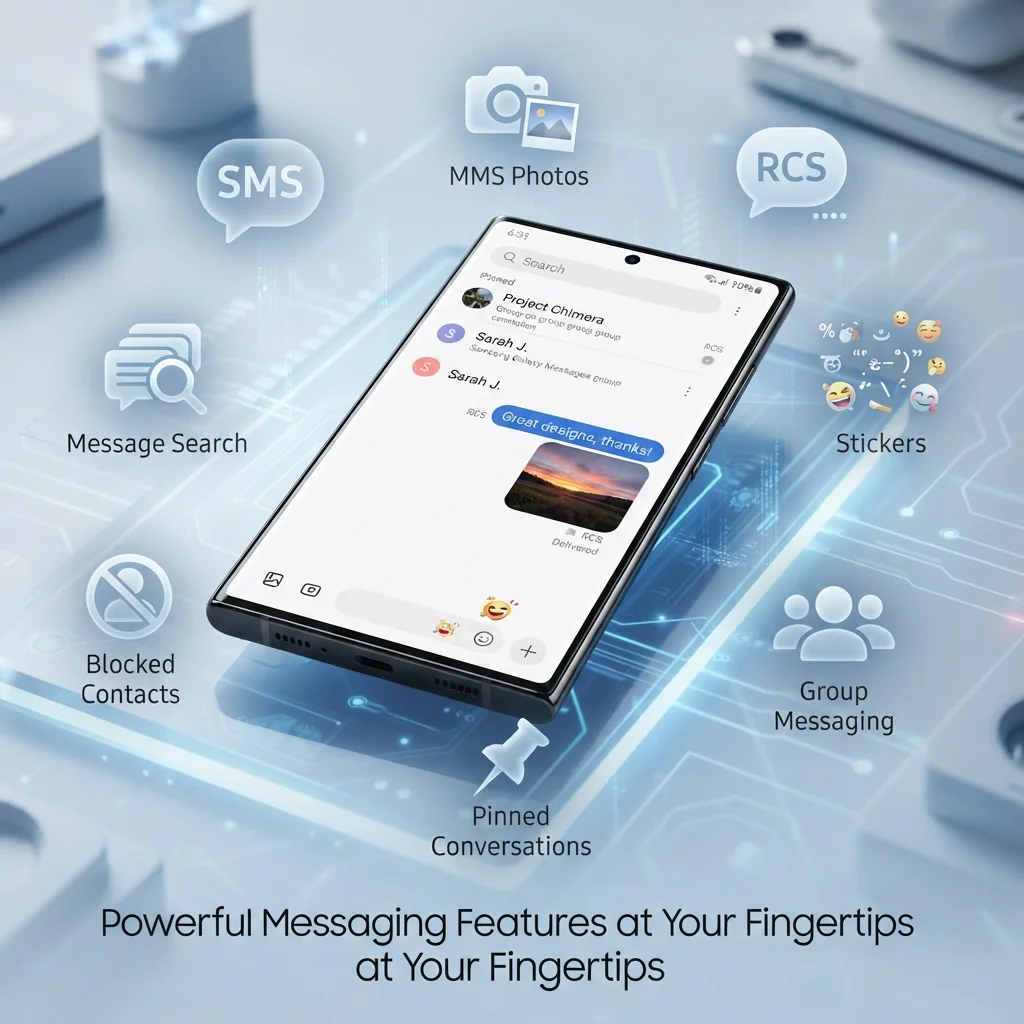
Here is what it does well:
- Search for messages and contacts
- Stickers and a sticker store
- Block unwanted messages
- Pin key chats to the top
- Mark messages as read in one tap
- Group messages with photos and videos
The app also asks for a few permissions. These include SMS, Phone, Contacts, Storage, Call logs, Camera, and Microphone. Location is optional and only used when you share where you are.
Must Visit: 150 Get Well Soon Messages to Brighten Their Day, Offer Comfort & Wish a Speedy Recovery
What is the difference between SMS, MMS, and RCS?
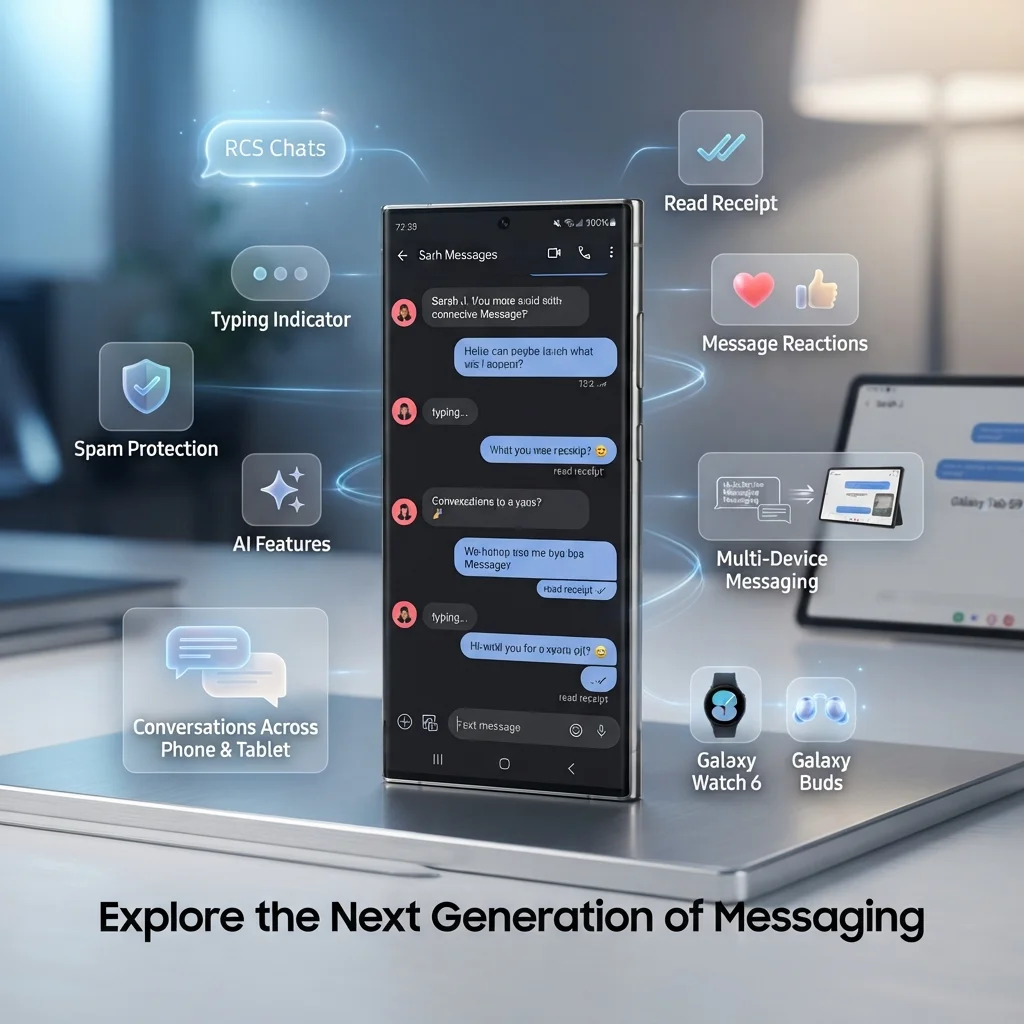
It is simple:
- SMS sends plain text.
- MMS sends pictures, video, and audio.
- RCS adds typing indicators, large files, and read receipts. In Samsung Messages, it works only if your carrier supports it.
Some things are missing. Samsung Messages does not support message reactions, like a thumbs up or heart. Those work in Google Messages.
Version also matters. The app works on Android 11 or older, and many Android 12 or newer devices no longer get it. Older Tizen watches and Wear OS watches handle messages differently, too.
Samsung Messages App Settings and Pro Tips
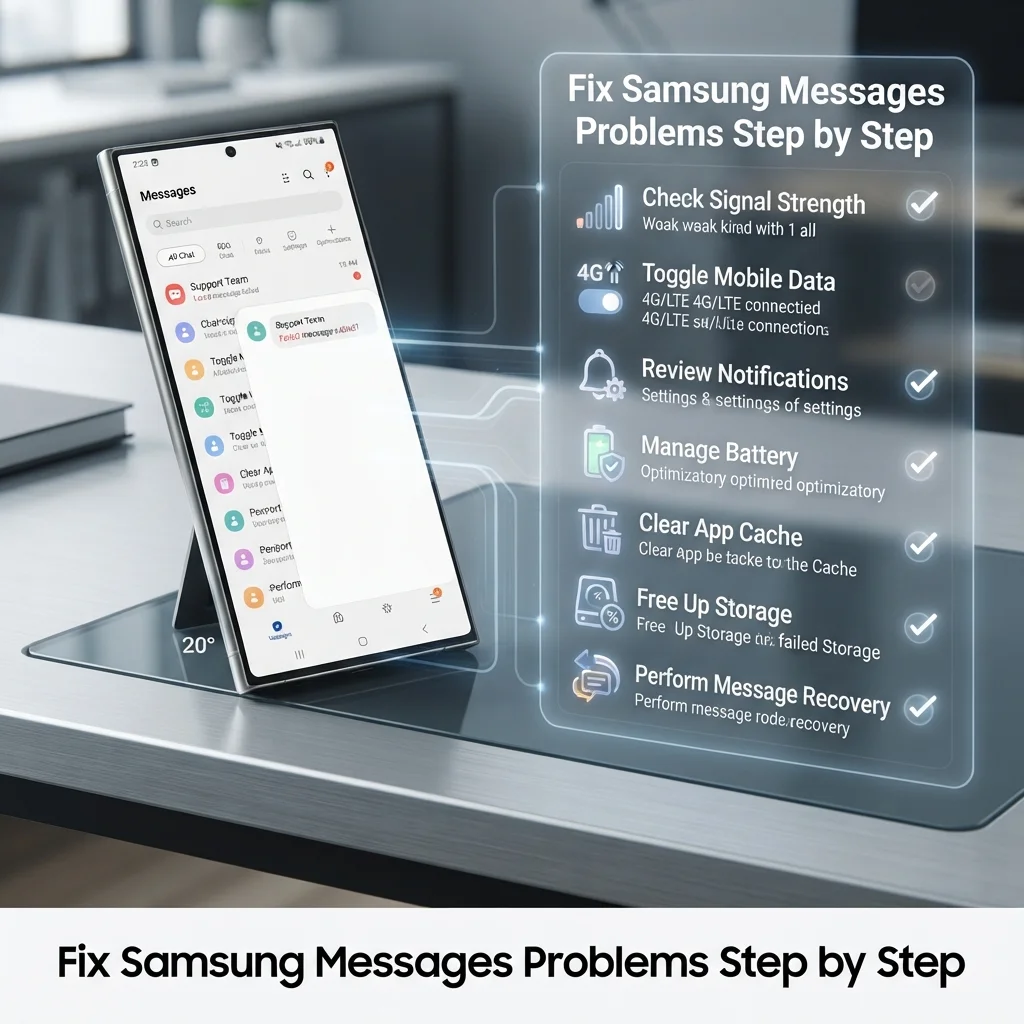
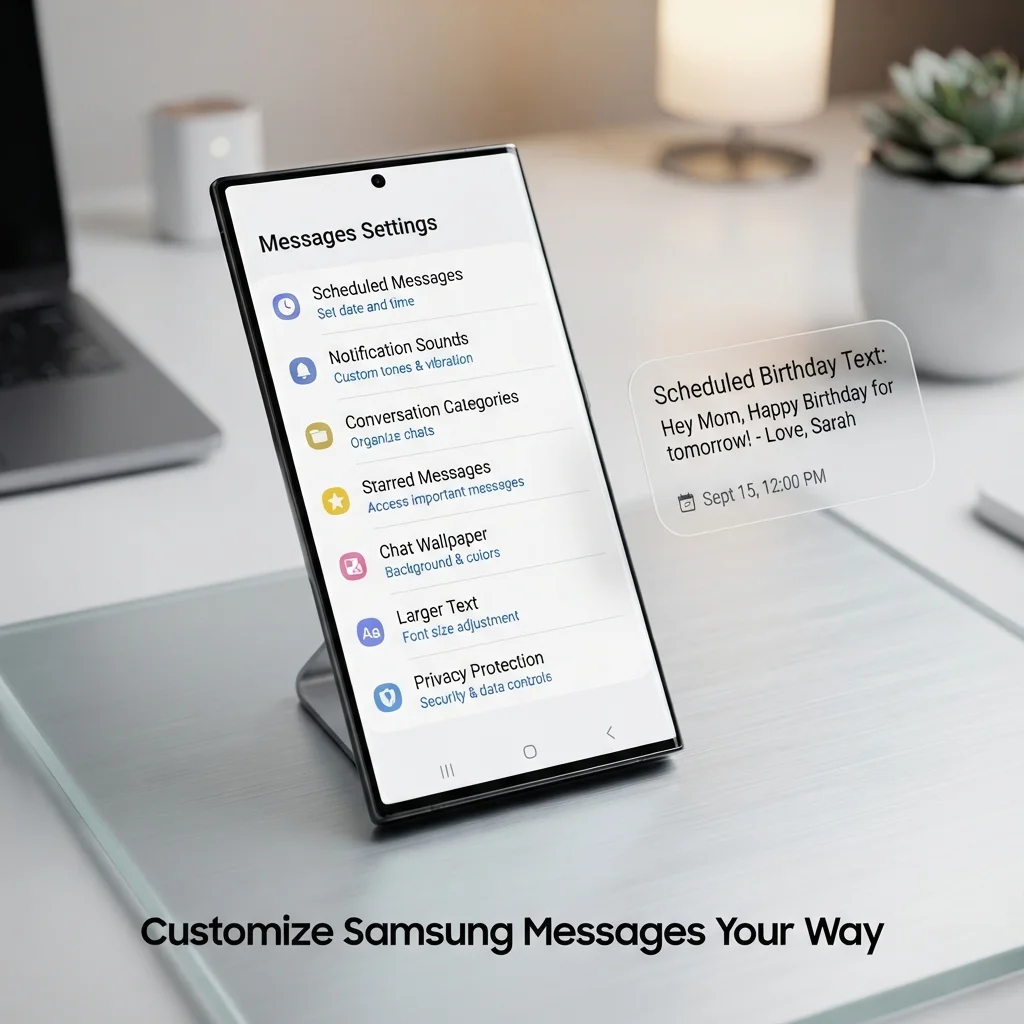
Most Samsung Messages settings sit under More options (the three dots), then Settings. A few tweaks can save you real time.
How do I schedule a text in the Samsung Messages app?
- Open Messages and tap Compose.
- Pick a contact and type your text.
- Tap Add (the plus sign), then Schedule message.
- Choose a date and time, up to a year ahead, and tap Done.
Here is a sample text you could schedule:
Happy birthday! Hope your day is full of cake and good news.
Other useful Samsung text message app tips:
- Mute a chat: Open it, tap More options, then use the bell icon or Mute conversation.
- Custom tones: Open a chat, tap More options, then Notification sound.
- Conversation categories: Turn them on in Settings to sort chats into groups.
- Star messages: Press and hold a bubble, then tap Star message.
- Bigger text: Pinch with two fingers. It only changes the text in Messages.
- Chat wallpaper: Use Customize chat room to set a photo or color for one thread.
Two settings protect your privacy. Turn on Remove location from shared images, which strips location data from photos you send. You can also turn off Trash if you want deleted texts gone right away.
Deleted texts stay in Trash for 30 days, so you can restore them. Samsung explains these steps on its Messages support page.
Samsung Messages App Troubleshooting: Common Problems and Fixes
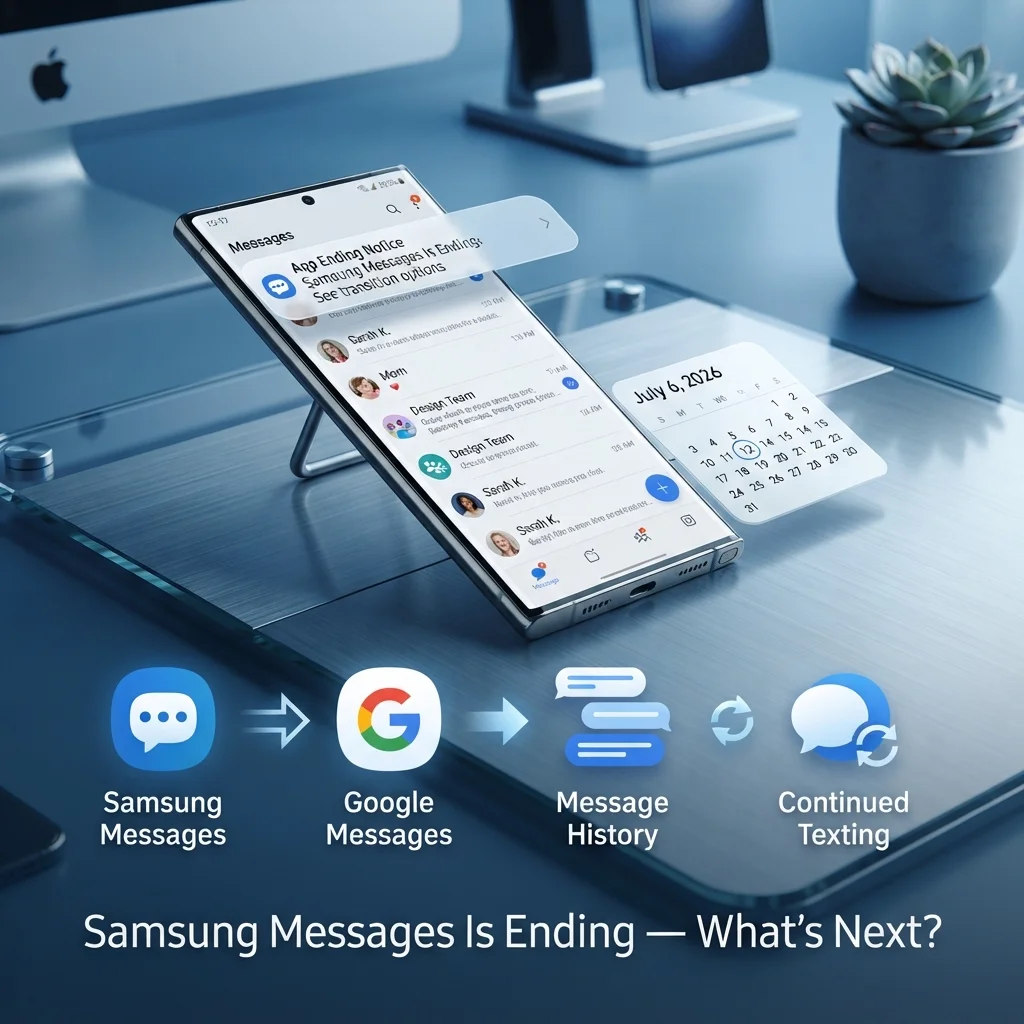
Most Samsung Messages problems come from a few simple causes. Start with the quick checks below, then move down the list.
Why are my texts not sending or receiving?
- Check your signal and turn airplane mode off.
- Confirm Messages is your default SMS app.
- Restart your phone.
- Make sure you did not block the number.
Why won’t picture messages (MMS) send?
- Turn on mobile data, since MMS needs it.
- Check that your plan includes multimedia messaging.
- Ask your carrier to confirm your APN settings.
Why am I not getting message notifications?
- Check that the chat is not muted.
- Review the notification sound for that chat.
- Look at battery optimization settings. They can put the app to sleep.
What if the app lags or crashes?
- Update it. Go to the Inbox tab, tap More options, then Settings, then About Messages, and tap Update.
- Clear the app cache in your phone’s app settings.
- Free up storage space.
Some users also report emojis showing as question marks and missing delivery reports. A newer app version and an updated keyboard often help. Delivery report options live under Settings, then More settings, then Push messages.
Lost a text by mistake? Open More options, tap Trash, press and hold the message, and tap Restore.
Samsung Messages App Discontinued: What to Do Next
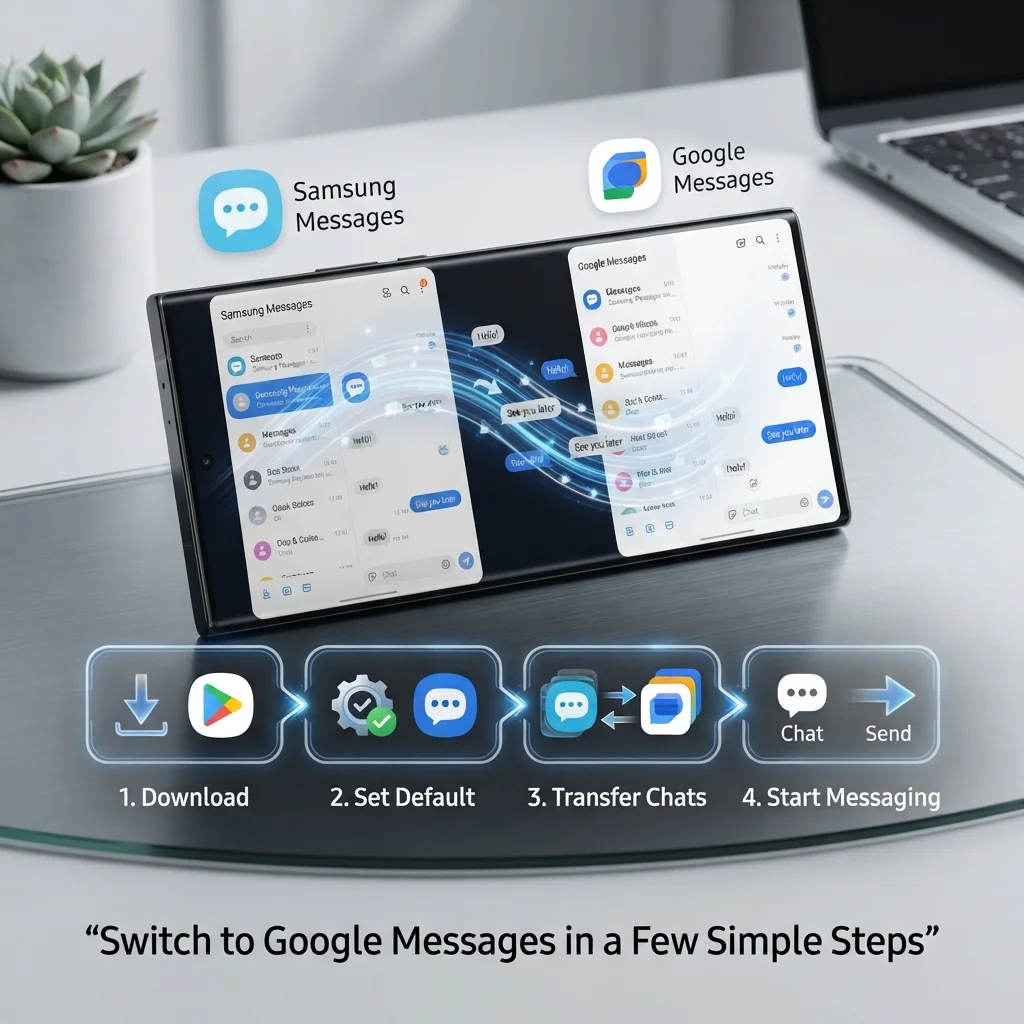
Samsung is ending the Samsung Message app for many US users. Here is what that means for you.
Is Samsung Messages being discontinued? Yes. The app is discontinued in the US on Galaxy devices running Android 12 or newer, starting July 6, 2026. Users on Android 11 or older are not affected.
Samsung also says the app becomes removable in fall 2026 on devices with One UI 9.0 or higher. Galaxy S26 and newer phones cannot download it from the Galaxy Store. See Samsung’s end-of-service notice.
After the shutdown, sending from Samsung Messages stops. Only emergency numbers and your set emergency contacts still work. Call & Text on Other Devices is also disrupted.
What does Google Messages give you? It is the suggested replacement. You get:
- RCS chats across Android and iOS (iOS 18 or later)
- AI scam detection and stronger spam filters
- Typing indicators, read receipts, and reactions
- Gemini smart replies and photo remix
- Multi-device chats on phone, tablet, and Galaxy Watch4 or newer
Learn more on the Google Messages page.
How do I switch to Google Messages?
- Open or download Google Messages from the Play Store.
- Tap Set default SMS app.
- Choose Google Messages.
- Tap Set as default.
Your chats move over automatically. A full transfer can take up to 24 hours, so be patient.
A few extra notes:
- On Android 12 or 13, the new icon may not land in your dock. Remove the old icon, then drag Google Messages there.
- Watches older than Galaxy Watch4 (Tizen OS) lose full chat history, but can still read and send texts.
- On devices from before 2022, RCS chats may pause until both people switch.
- Avoid unofficial APK sites. Files from unknown sources can carry malware.
FAQs
Is there a Samsung text message app?
Yes. Samsung Messages is Samsung’s own text message app for SMS and MMS. Many Galaxy phones came with it preinstalled. In the US, it is now discontinued for Android 12 or newer, and Samsung points users to Google Messages instead.
Can I still use Samsung messages after July 2026?
Only on Android 11 or older. On Android 12 or newer in the US, sending stops after the shutdown, except to emergency numbers and emergency contacts. Samsung advises switching to Google Messages to keep full texting and RCS features.
Is Samsung messages being discontinued?
Yes. Samsung ended the app in the US for Galaxy devices on Android 12 or newer, starting July 6, 2026. The app also becomes removable in fall 2026 on One UI 9.0 or higher. Android 11 or older users are not affected.
How do I get the Samsung messages app back?
On Android 11 or older, open the Galaxy Store, search for Samsung Messages, and tap Install. On Android 12 or newer, it is no longer offered for download. Galaxy S26 and newer phones cannot get it at all.
Conclusion:
The Samsung Message app gave Galaxy users a simple way to send SMS and MMS. Its tools like scheduling, pinning, and blocking were easy to use.
Check your Android version first. If you are on Android 12 or newer, switch to Google Messages soon so your texts, RCS chats, and spam protection keep working.

Timmy Abu Zar is the writer and voice behind CondolenceMessages.com, dedicated to helping people find comforting words during life’s most difficult moments. With a deep respect for the many ways people grieve and remember, Timmy writes thoughtful, sincere messages and guides to support readers through loss, no matter their background or beliefs.